Answers to all your Questions.
Browse through numerous categories to find what you are looking for, this place has it all
Blue screen of death error – how to fix
Published on July 13, 2026 by Fixidia Tech
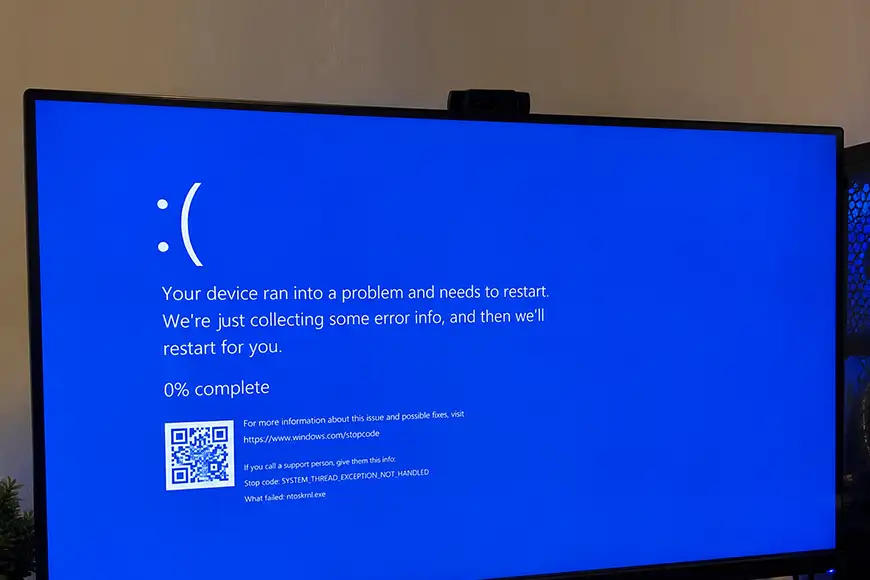
A blue screen of death error looks alarming, sounds dangerous but hey, its not the death sentence as it sounds. It’s actually Windows protecting itself when the system hits a problem serious enough that continuing could risk data loss or hardware damage, it stops everything and restarts. In most cases, the cause is a driver conflict, a recent update, or a hardware issue, and it’s fixable without losing your files.
Note the stop code before doing anything else
The blue screen displays a stop code at the bottom, such as CRITICAL_PROCESS_DIED or PAGE_FAULT_IN_NONPAGED_AREA. Write it down or take a photo, since it points directly to what caused the crash and will guide which fix below to try first.
Step 1: Restart and see if it happens again
Many blue screens are one-off events caused by a temporary glitch. Restart your PC normally and continue using it as usual; if the same stop code doesn’t return, no further action is needed. if the problem is deeper, your pc can get stuck at boot screen as well, have a read here if that happens.
Step 2: Undo recent changes
If the crashes started right after installing new software, driver, or hardware, remove or uninstall whatever was added most recently. This resolves a large share of blue screens tied to a specific recent change.
Step 3: Boot into safe mode and check device manager
Hold Shift while selecting Restart from the power menu, then go to Troubleshoot > Advanced Options > Startup Settings and choose Safe Mode. Once inside, open Device Manager and look for any device marked with a yellow exclamation point, which often points to the problematic driver.
Step 4: Update or roll back drivers
In Device Manager, right-click any flagged device and choose Update Driver, or Roll Back Driver if the issue started after a recent driver update. Outdated or newly broken drivers are among the most common causes of blue screens.
Step 5: Run the memory diagnostic tool
Search for Windows Memory Diagnostic in the Start menu, run it, and restart your PC when prompted. This scans your RAM for errors that can cause blue screens, particularly ones with memory-related stop codes.
Step 6: Check your hard drive for errors
Open Command Prompt as administrator and type chkdsk /f /r, then restart when prompted. This scans your drive for corrupted sectors and file system errors, another common cause of blue screens.
Step 7: Update windows or restore if needed
Go to Settings > Windows Update and install any pending updates, since Microsoft regularly patches known BSOD causes. If crashes continue, use System Restore to roll back to a point before the problem started.
Step8: Do not disregard malware, that can be a cause
Malware can secretly get into your computer and start using memory to do its own thing, this can cause the CPU dropout because the malware script wouldn’t care for the capability limits of your PC, that can in fact result in the blue screen of death error, once you restart your PC, do scan for malware to make sure your computer is not in use while you are actually not using it. Have a read here for a detailed malware checkup if you windows PC is infected with one.
Frequently asked questions
Is it safe to just restart my computer after a blue screen
Yes, in most cases. Windows creates a small file with crash details before restarting, and a single blue screen followed by normal operation usually doesn’t need further action unless it happens repeatedly.
What does the stop code at the bottom of the blue screen mean
It’s a specific label identifying what type of critical error caused the crash, such as a driver conflict or memory issue, and looking up that exact code is the fastest way to narrow down the right fix.
Can a blue screen mean my hard drive is failing
It can, particularly if you also notice unusual noises, slow performance, or repeated crashes with disk-related stop codes. Running chkdsk /f /r will reveal file system errors, though a drive health tool is the more reliable way to check for physical failure.
Will i lose my files if i get a blue screen of death
Usually not. A blue screen is a protective shutdown designed specifically to prevent data loss, so your files are typically safe. Reinstalling Windows as a last resort is the main scenario where data loss becomes a real risk, which is why backing up beforehand is worthwhile.