Answers to all your Questions.
Browse through numerous categories to find what you are looking for, this place has it all
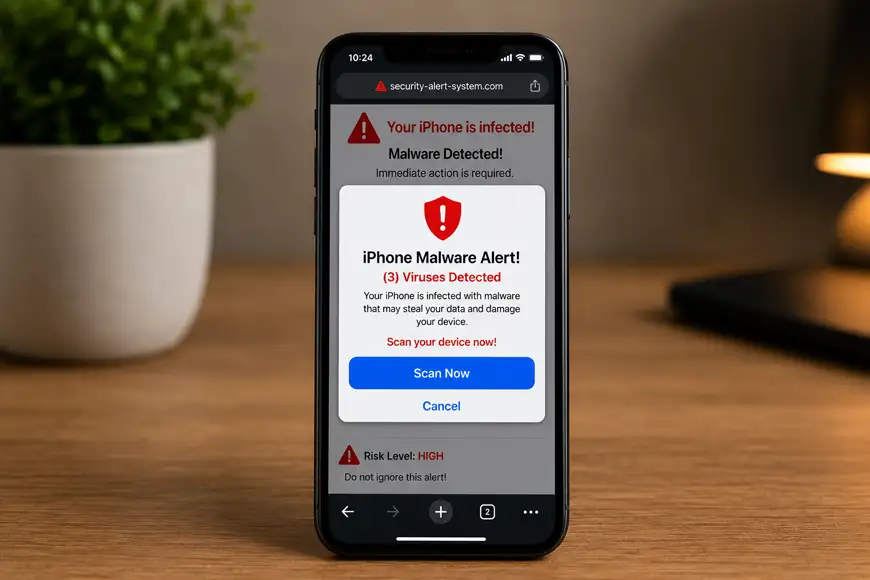
iPhone malware alert – Recognize the fakes
Published on June 6, 2026 by Fixidia Tech
Seeing an iPhone malware alert can be alarming, especially when a pop-up claims your device is infected with viruses or urges you to download a security app immediately. Be careful and:
1: Do not tap the alert
2: Close the browser immediately
3: Clear Safari browsing data
People get worried that their personal information, photos, passwords, or banking details have been compromised. Well actually in most cases, these warnings are fake scare tactics designed to trick users into clicking malicious links or installing unwanted software.
In reality, malware infections on iPhones are relatively rare, and most iPhone malware alert messages can be handled quickly by following a few simple “presence of mind” steps.
Understanding iPhone malware alerts
Most malware alerts seen on iPhones originate from websites rather than the device itself. These fake warnings often appear while browsing the internet and attempt to convince users that their phone has been infected.
A legitimate Apple security warning typically appears through official system notifications or account alerts—not through random browser pop-ups. Knowing the difference can help you avoid scams and protect your device. This also applies on all other devices you use, whether its an iPhone or a windows laptop, fake malware warnings always bring the same agenda and then cause trouble, we have another article on malware issues on windows PC here.
Step 1: Do not tap the alert
The first rule is simple: do not interact with the warning. Avoid:
- Clicking OK
- Downloading suggested apps
- Calling support numbers displayed in the alert
- Entering passwords or personal information
Many fake alerts are designed to redirect users to phishing websites or malicious downloads.
Step 2: Close the browser immediately
If the alert appeared while browsing, close the browser without interacting with the message.
On iPhone:
- Swipe up from the bottom of the screen (or double-press the Home button on older models)
- Find the browser app
- Swipe it away to force close it
This will prevent the suspicious web page from continuing to display the warning.
Step 3: Clear Safari browsing data
Many fake malware warnings reappear because the browser reloads the same web page.
To clear Safari data:
- Open Settings
- Tap Safari
- Select Clear History and Website Data
This will remove stored website information and eliminate recurring pop-ups.
Step 4: Check for suspicious apps
Although rare, unwanted apps can sometimes generate misleading notifications. Review recently installed apps and remove anything unfamiliar.
To delete an app:
- Press and hold the app icon
- Tap Remove App
- Confirm deletion
If the iPhone malware alert started after installing a specific app, removing it may solve the issue.
Step 5: Update iOS
Apple regularly releases security updates that improve protection against vulnerabilities and threats.
Go to: Settings > General > Software Update
Install any available updates and restart the iPhone afterward. Keeping iOS updated is one of the best ways to maintain device security.
Step 6: Check notification permissions
Some websites may abuse browser notifications to display misleading security warnings.
Go to: Settings > Notifications
Review apps with notification permissions and disable alerts from suspicious or unnecessary applications.
Step 7: Review installed profiles
Configuration profiles can modify device behavior and should only be installed from trusted sources.
Check for profiles by going to: Settings > General > VPN & Device Management
Remove profiles you do not recognize or no longer need. Unexpected profiles may indicate unauthorized changes to the device.
Step 8: Change important passwords
If you clicked a suspicious link or entered credentials, change important passwords immediately. Prioritize:
- Apple ID
- Email accounts
- Banking apps
- Social media accounts
Also enable two-factor authentication wherever possible for additional protection. When you click a suspicious link on a website, you provide a doorway to malwares or worse, a ransomeware, read this article here about how to handle a ransomeware on your device.
Step 9: Run a security review
Review your device for unusual signs such as:
- Excessive battery drain
- Unexpected pop-ups
- Unrecognized apps
- Increased data usage
While these symptoms do not always indicate malware, they can help identify suspicious activity that warrants further investigation.
FAQs
How will I know if my iPhone has malware?
Although very rare, but possible signs include unusual pop-ups, unexpected battery drain, unfamiliar apps, excessive data usage, browser redirects, or frequent crashes. However, many symptoms can also result from software bugs rather than malware.
Will Apple notify you if your iPhone has a virus?
Apple does not typically send random browser pop-ups claiming your iPhone has a virus. Legitimate security notifications usually come through official Apple system messages or your Apple ID account.
Is the iPhone virus warning fake?
In most cases, yes. Many iPhone virus warnings displayed in web browsers are fake scams designed to trick users into downloading software, calling fraudulent support numbers, or providing personal information.
How do I know if my Apple security alert is real?
Real Apple security alerts generally appear through official Apple services, device settings, or your Apple ID account. Be cautious of warnings displayed on websites that demand immediate action, request payment, or pressure you to install unknown software.