Answers to all your Questions.
Browse through numerous categories to find what you are looking for, this place has it all
Laptop battery draining fast – Quick fix
Published on May 12, 2026 by Fixidia Tech
Laptop battery draining fast is one of the most common problems users face, especially on older laptops or systems running too many background tasks. A battery that once lasted several hours may suddenly start dying within minutes, or your laptop shuts down all of a sudden and you are stranded while your work was not save. This makes it difficult to work or study while you are on the move and you don’t have a place to plug in your charger. In many cases, the issue can be fixed with a few simple adjustments in Windows settings, apps, and power usage habits.
Why laptop batteries drain quickly
Modern laptops run many background services, apps, updates, and hardware features that consume power continuously. High screen brightness, outdated drivers, overheating, and poor battery settings can all reduce battery performance. Before replacing the battery, try the quick fixes below to improve battery life and reduce unnecessary power consumption.
Step1: Reduce screen brightness
The display is one of the biggest battery consumers on any laptop. If your brightness is set too high, your battery percentage can drop rapidly.
Lower the brightness to a comfortable level using the keyboard brightness keys or through the Windows settings panel. If you are not a graphic designer or a photographer, lowering the brightness wouldn’t hurt your work. You can also enable adaptive brightness if your laptop supports it. Even reducing brightness by 20–30% can noticeably improve battery life.
Step2: Close unnecessary background apps
Many applications continue running in the background even after you stop using them. Programs like browsers with multiple tabs, cloud sync apps, video editors, and communication software can quietly drain power.
Press Ctrl + Shift + Esc to open Task Manager and check which apps are consuming high CPU or memory resources. Close apps you are not actively using. Also disable unnecessary startup programs from the Startup tab to prevent them from launching automatically when the laptop boots.
Step3: Enable battery saver mode
Windows includes a built-in Battery Saver feature designed to reduce power usage automatically.
Go to Settings > System > Power & Battery and turn on Battery Saver mode. This feature limits background activity, lowers performance slightly, and helps extend battery runtime. It is especially useful when working away from a charger.
Step4: Check for overheating issues
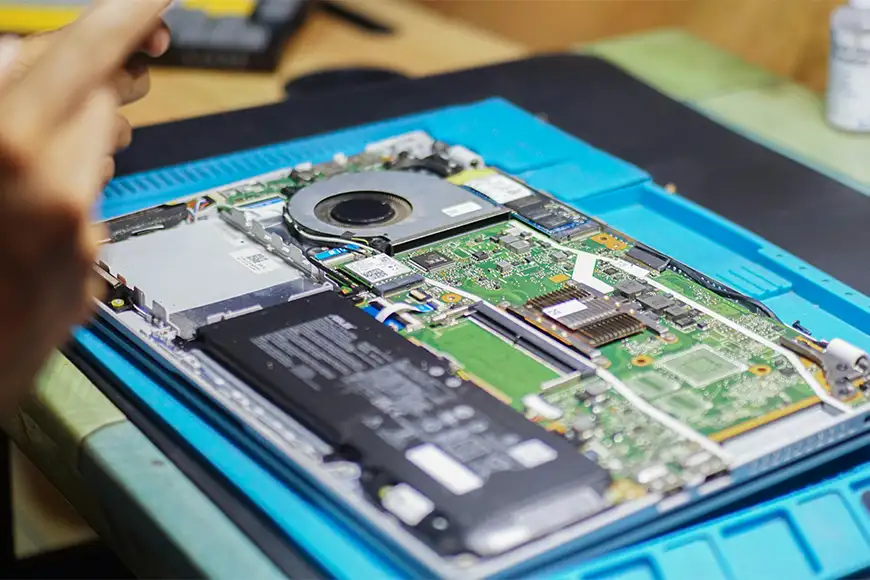
Is your laptop’s cooling vent is clean? blocked vent can overheat your system resulting the fan running at full speed almost all the time. Excess heat forces the laptop fan to work harder and can also reduce battery efficiency. Overheating is a major reason many users experience laptop battery draining fast problems.
Make sure the laptop vents are clean and not blocked by dust. Use the laptop on a hard surface instead of a bed or cushion. If the cooling fan is constantly loud, consider cleaning the internal fan or replacing old thermal paste if the device is several years old. The thermal paste is placed right on top of your processor, the heat sync is placed on top of it, which is then connected with a copper duct all the way to the fan.
Step5: Disable unused hardware features
Wi-Fi, Bluetooth, keyboard lighting, and external devices all consume battery power.
Turn off Bluetooth when not needed. Disconnect USB devices, external hard drives, or wireless accessories that draw power from the laptop. If your laptop has RGB lighting or backlit keyboards, lowering or disabling them can also help extend battery life.
Step6: Update battery and chipset drivers
Outdated drivers can sometimes cause incorrect battery reporting or inefficient power management.
Open Device Manager and check for updates under Batteries and System Devices. You should also visit the laptop manufacturer’s website to install the latest chipset and power management drivers for your specific model.
For some laptops, BIOS updates can improve charging behavior and battery optimization as well.
Step7: Check battery health
If your laptop is several years old, the battery itself may be worn out. Rechargeable batteries naturally lose capacity over time.
You can check battery health in Windows by opening Command Prompt and running:
powercfg /batteryreport
Windows will generate a battery report showing the original design capacity versus the current full charge capacity. If the full charge capacity is significantly lower, the battery may need replacement.
Step8: Change power mode settings
Windows power plans directly affect battery consumption. High Performance mode uses more power to maximize speed.
Go to Settings > Power & Battery and switch to Balanced or Power Efficiency mode. This can reduce unnecessary CPU power usage and help the battery last longer during everyday tasks like browsing or office work. With this you may compromise on performance, but it is up to you what balance between power and performance you are comfortable with.
Step9: Check for physical damage or deshaping
Check if your battery is deshaped? some laptops have battery placed with a clip outside the casing and on some laptops you have to open the casing to reach the battery, check if you can see some swelling on the battery, that is when you must replace your battery. This is very important because a swollen battery not only drains fast, it has now become dangerous as well because the next step is explosion. Well its rare but there is a limit to the plastic casing that may tear apart when the battery swelling is beyond the limits of the elasticity the plastic body. Always replace with the original battery with UL (Underwriters Laboratories), CE, RoHS, and IEC 62133 certifications, this ensures the battery you are buying is tested well enough, reducing the risk of fire or swelling.
Final thoughts
If your laptop battery draining fast issue started recently, there is a good chance it can be fixed without replacing the battery. Simple actions like lowering brightness, closing background apps, enabling Battery Saver, and checking battery health can make a major difference. Battery or any other hardware in your computer, keep observing while using it and be always conscious about hardware health, cleaning and maintenance. If the battery capacity has significantly degraded over time, replacing the battery may be the only long-term solution. Regular maintenance, proper cooling, and smart power settings can help your laptop battery last longer and perform more reliably every day.