Answers to all your Questions.
Browse through numerous categories to find what you are looking for, this place has it all
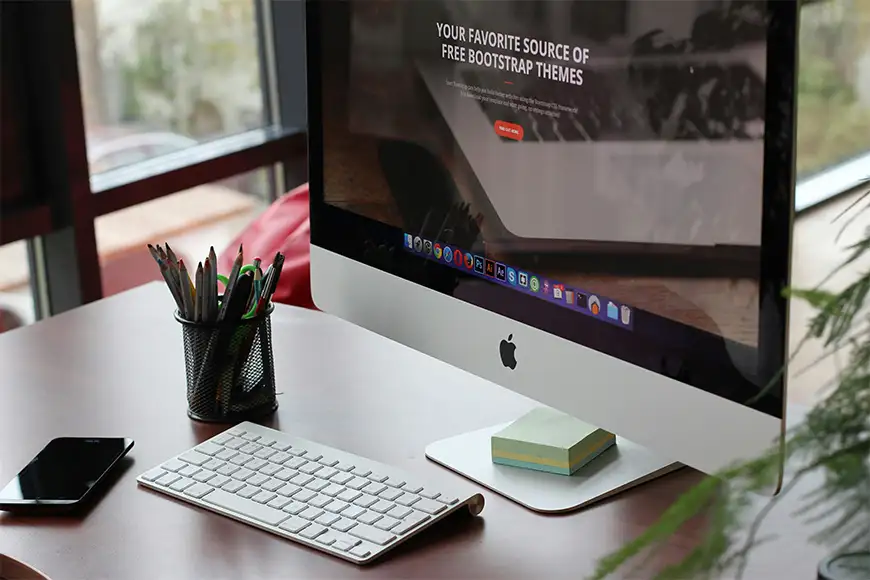
Safari running slow on Mac – Troubleshooting guide
Published on May 8, 2026 by Fixidia Tech
If you are dealing with Safari running slow on Mac, the browser, over time, can become sluggish due to outdated cache files, too many extensions, background processes, or software issues. Before getting deep into the issue, you can try a few quick fixes here:
- Restart your Mac
- Close unused Safari tabs
- Clear Safari cache and website data
- disable unnecessary extensions
Slow page loading, laggy scrolling, freezing tabs, and delayed typing are all common signs that Safari needs attention. This can happen to any browser and not only Safari, but in this article we will focus on Safari and MacOS.
Common reasons and finding the solution
We will go step by step from the easiest to the last resort when everything else fails, lets get going.
Step 1: Restart your Mac
The easiest of the fixes, Before we try to become an astronaut, lets do the very basic thing that often resolves the computer issues 🙂 Restart your Mac. Temporary system glitches and overloaded memory can slow down Safari performance. A simple restart clears temporary processes and refreshes system resources. Just closing the lid of the laptop is our usual habit, and we don’t shutdown our laptops for weeks even months sometimes, this is a bad habit, shutdown at least once a week is a must in my opinion.
To restart your Mac:
- Click the Apple logo in the top-left corner
- Select Restart
- Open Safari again after rebooting and DO NOT restore your tabs, the idea is to give Safari a very fresh start.
If the issue was caused by temporary memory usage, this may immediately improve performance.
Step 2: Close unused Safari tabs
Having too many tabs open at the same time will consume RAM and processing power, especially on older Macs.
To improve speed:
- Close tabs you no longer need
- Remove unnecessary Safari windows
- Avoid leaving video or streaming and live stock / crypto data tabs open in the background.
Safari performs much better when system resources are not overloaded.
Step 3: Clear Safari cache and website data
Corrupted cache files and stored website data can cause Safari to become slow or unstable.
To clear cache and browsing data:
- Open Safari
- Click Safari > Settings
- Go to the Privacy tab
- Select Manage Website Data > read the warning message first, it says you will be logged out of these websites and the behaviour will change.
- Click Remove All
You can also clear browsing history:
- Click History
- Select Clear History
- Choose All History
This step often fixes the issues caused by overloaded browser storage.
Step 4: Disable unnecessary extensions
Browser extensions can heavily impact Safari speed, especially ad blockers, shopping tools, or outdated plugins. Sometimes we install the extensions almost inadvertently while doing something else. You need to keep an eye on the extensions and remove the ones you don’t need.
To disable extensions:
- Open Safari
- Click Safari > Settings
- Go to the Extensions tab
- Turn off extensions one by one
After disabling them, restart Safari and check performance again. If Safari becomes faster, one of the extensions was likely causing the slowdown.
Step 5: Update MacOS and Safari
Apple regularly releases updates that improve Safari stability and performance.
To check for updates:
- Open System Settings
- Go to General
- Click Software Update
You will see the update depending on what model of Mac you are using, for example if you are using a 2015 iMac then obviously you wouldn’t be able to update it to the latest OS from here and you will need to update your Mac manually, and you will also need to verify beforehand that your system can support the latest OS, or whichever newer version you are about to install. I had an iMac 2015 and in 2024, I updated it from Monterey, directly to Sequoia, bypassing Ventura and Sonoma, but I had to do it manually because Apple had stopped sending updates for iMac 2015. My system did support this new update and worked just fine.
If you have a newer Mac, you will see an update here and you can Install any available updates and restart your Mac afterward.
Running outdated software can cause compatibility problems and slow browsing speeds.
Step 6: Free up Mac storage space
Low storage space can affect overall Mac performance, including Safari.
To check storage:
- Click Apple logo
- Open About This Mac
- Select Storage
If your drive is nearly full:
- Delete unnecessary downloads
- Empty Trash
- Remove large unused applications
- Move files to external storage or cloud storage
- Check the time machine, it keeps creating full image of your OS files system and consumes a lot of space, you may want to disable it to free up space significantly.
Keeping at least 15% to 20% free storage space helps macOS run smoothly.
Step 7: Check activity monitor
Background apps consuming CPU or memory can make Safari feel slow.
To check system usage:
- Open Spotlight Search
- Type Activity Monitor
- Look for apps using excessive CPU or RAM
Close heavy applications that are not needed while browsing.
Video editing software, cloud sync apps, and browser-heavy tasks can reduce Safari responsiveness.
Step 8: Disable background Safari features
Some Safari features can consume extra system resources.
To reduce browser load:
- Open Safari Settings
- Disable unnecessary AutoFill options
- Turn off unnecessary website notifications
- Disable automatic tab previews if enabled
Reducing background browser activity can noticeably improve speed.
Step 9: Test Safari in safe mode
When MacOS is launched in Safe Mode, it disables unnecessary startup items and system extensions.
To enter Safe Mode on Mac:
- Intel Mac: Hold Shift during startup
- Apple Silicon Mac: Hold the power button and select Safe Mode
Once in Safe Mode, open Safari and test performance. If Safari works normally, the issue may be caused by third-party software running on your Mac.
Step 10: Reset Safari completely
If nothing else works, resetting Safari settings may help,this will clear everything and Safari will lauch as a fresh install, obviously this is why I kept it as the last option.
You can:
- Remove Safari preferences
- Delete cache manually
- Create a fresh Safari environment
This should only be done after trying simpler troubleshooting methods first.
Final thoughts
Safari running slow on Mac can usually be fixed with basic maintenance and browser cleanup. Clearing cache, disabling problematic extensions, updating MacOS if possible, and reducing system load are like healthy habits just like you eat good food, go to the gym or a walk, sleep well etc. Computers also need that kind of healthy routine. In many cases, these steps can improve the overall health of your Mac and restore Safari performance within minutes.
FAQs
How to make Safari run faster?
You can make Safari faster by clearing cache files, removing unnecessary extensions, closing unused tabs, updating macOS, and restarting the browser regularly. Disabling resource-heavy websites and freeing up storage space on your Mac can also improve Safari performance.
How do I find out what is slowing down my Mac?
You can identify what is slowing down your Mac by opening Activity Monitor from Applications > Utilities. Check which apps or processes are using high CPU, memory, or disk resources. Background apps, outdated software, low storage space, and too many startup programs are common causes of slow performance.
Why has Safari slowed down?
Safari may slow down because of overloaded cache files, outdated macOS versions, too many open tabs, problematic browser extensions, or websites consuming excessive system resources. Network issues and low available storage can also affect browser speed.
How do I clear the cache in Safari on a Mac?
To clear Safari cache on a Mac:
- Open Safari
- Click Safari > Settings
- Go to the Advanced tab
- Enable “Show Develop menu in menu bar”
- Click Develop in the top menu
- Select Empty Caches
You can also clear browsing history and website data from Safari settings for a more complete cleanup.