Answers to all your Questions.
Browse through numerous categories to find what you are looking for, this place has it all
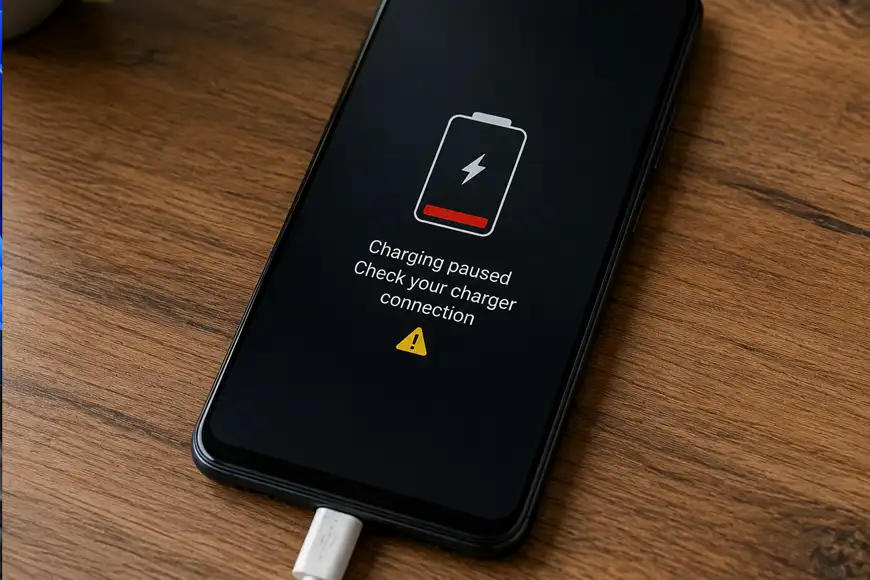
Android phone not charging – Quick fix
Published on June 6, 2026 by Fixidia Tech
Your Android phone not charging issue appeared suddenly, you plug in the charger, but the battery percentage stays the same, try these quick steps or we can take a deeper look in this article below.
1: Restart your Android phone
2: Inspect the charging cable
3: Test a different power adapter
The phone charges very slowly, or does not respond at all. In some cases, the phone may only charge at certain angles, or it even shows a charging icon but without actually gaining battery power.
Common reasons why Android phones stop charging
Most charging problems are caused by simple issues such as faulty cables, dirty charging ports or worn-out charging accessories. In some cases the phone does charge but the battery drains very fast, read this article to fix that issue. Before assuming your phone needs repair, try the troubleshooting steps below. In most cases you should be able to fix these issues at home.
Step 1: Restart your Android phone
Any misbehaving device, restart should be the very first option, sometimes it works like magic if you are lucky 🙂 Temporary software glitches tend to reset after the device restart. Sometimes these glitches can prevent the charging system of your phone from working properly.
Press and hold the power button and restart the phone completely. Once the device powers back on, connect the charger again and check whether charging resumes normally.
This simple step often resolves temporary charging detection issues.
Step 2: Inspect the charging cable
Charging cables are one of the most common points of failure.
Carefully examine the cable for:
- Frayed wires
- Bent connectors
- Cracks in the insulation
- Loose USB ends
Try using another compatible charging cable to see if the issue persists.
Many Android phone not charging problems are resolved by replacing a damaged cable.
Step 3: Test a different power adapter
A faulty wall adapter can prevent proper charging if your cable appears normal.
Connect the phone using a different charger that meets the manufacturer’s recommended specifications. Avoid the cheap or low-quality chargers, as they may not provide sufficient power or even damage your phone’s charging circuit.
Sometimes the battery is fully drained that the charger stops recognizing your phone’s battery as a chargeable thing, in this case you can try connecting your phone via a USB cable to your laptop, this will provide low voltage charging to the battery for a few minutes and your phone’s battery will come alive, at that point disconnect the phone from the laptop and plug it in with the charger to start normal charging.
If the phone starts charging normally, the original adapter is likely defective.
Step 4: Clean the charging port
Dust, lint, and debris frequently accumulate inside USB-C and Micro USB ports while your phone is in your pocket or a handbag full of other stuff.
Use a flashlight to inspect the charging port carefully. If debris is visible, gently remove it using:
- A wooden toothpick
- A soft plastic tool
- Compressed air
Avoid using metal objects, which can damage internal charging pins.
A blocked charging port is one of the most common causes of charging failures.
Step 5: Check for moisture warnings
Many Android phones include moisture detection systems.
If the phone recently came into contact with water, humidity, or condensation, charging may be disabled temporarily to prevent damage.
Allow the device to dry completely before reconnecting the charger.
Warning: Do not use excessive heat such as hair dryers, which can damage internal components.
Step 6: Try charging in Safe Mode
Third-party apps can occasionally interfere with battery management. Boot the phone into Safe Mode and connect the charger. If charging works correctly in Safe Mode, a recently installed application may be causing the issue.
Remove suspicious apps and test charging again in normal mode.
Step 7: Check battery health
Older batteries naturally lose charging efficiency over time.
Signs of battery wear include:
- Rapid battery drain
- Unexpected shutdowns
- Excessive heat
- Swollen battery casing
If your phone is several years old, battery replacement may be necessary.
Step 8: Update Android software
Software bugs can occasionally affect charging behavior.
Go to > Settings > System > Software Update
Install any available updates and restart the device. Manufacturers often release fixes for charging, battery management, and power-related issues.
Step 9: Test wireless charging if supported
If your phone supports wireless charging, place it on a compatible charging pad. If wireless charging works but wired charging does not, the problem is likely related to the charging port, cable, or adapter rather than the battery itself. This can help narrow down the source of the issue.
Step 10: Seek professional repair
If none of the previous steps resolve the problem, hardware damage may be present. Common hardware failures include:
- Damaged charging ports
- Faulty charging IC chips
- Battery failure
- Motherboard issues
A qualified repair technician can perform further diagnostics and repairs safely. The charging issues can happen to all battery operated devices, here is an article where we have discussed about laptop batter issues
FAQs
Why is my Android phone suddenly not charging?
Common causes include damaged charging cables, faulty adapters, dirty charging ports, software glitches, battery wear, or moisture detection warnings.
Why is my phone charger plugged in but not charging?
This can happen because of a defective cable, damaged charging port, insufficient power from the charger, or software-related charging issues.
How to know if a charging port is damaged?
Signs of a damaged charging port include loose cable connections, charging only at certain angles, visible bent pins, intermittent charging, or complete failure to detect a charger.
How do you fix a phone that won’t charge?
Start by restarting the phone, testing a different cable and charger, cleaning the charging port, checking for software updates, and inspecting the battery. If the problem continues, professional repair may be required.