Answers to all your Questions.
Browse through numerous categories to find what you are looking for, this place has it all
Gmail spam filter not working – how to fix
Published on May 26, 2026 by Fixidia Tech
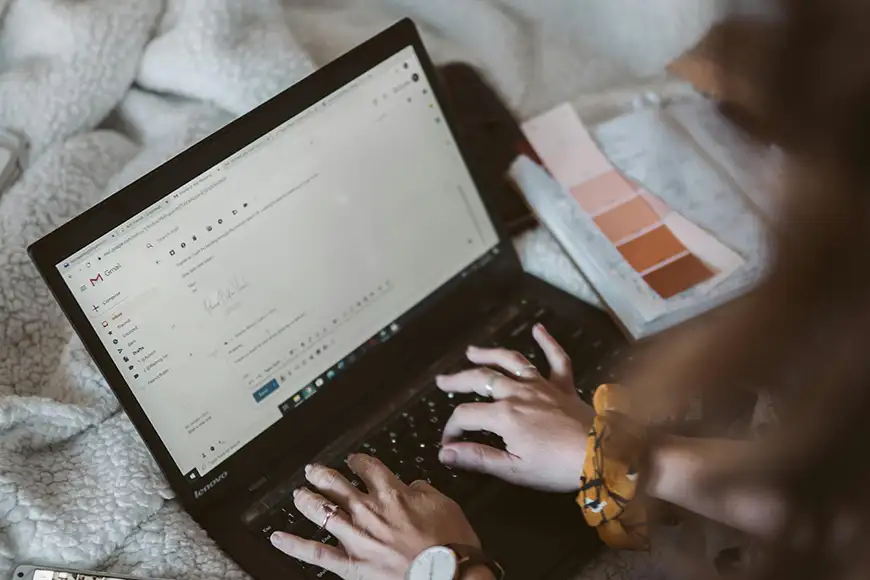
Your Gmail spam filter not working, the issue suddenly appeared, suspicious emails landing directly in your inbox instead of the spam folder. Here are the top fixes before we dive deep into it:
1: Mark unwanted emails as spam manually
2: Check if emails were accidentally marked as safe
3: Block suspicious senders
Spam messages, phishing attempts, fake promotions, and malicious links can even be dangerous when Gmail’s filtering system stops working properly. At times, custom filters may also fail to sort emails correctly, allowing unwanted messages to bypass protections.
In this article we will find the effective ways to improve Gmail spam detection and restore proper filtering.
Why Gmail spam filtering may stop working
Gmail uses advanced machine learning systems to detect spam automatically, but no filter is perfect and guaranteed. Changes in email patterns, outdated filters, third-party email apps, or accidental whitelisting can reduce spam detection accuracy.
If you frequently open spam emails without marking them correctly, it can confuse Gmail’s filtering system over time and the spam filter will not work properly.
Step 1: Mark unwanted emails as spam manually
One of the best ways to improve Gmail’s filtering accuracy is training the system manually.
When spam emails appear in your inbox:
- Select the unwanted email
- Click the Report Spam button
Now Gmail has learning that this message should be blocked in the future. Do this for all other spams you are receiving and you will see noticeable improvement.
Avoid simply deleting spam emails without marking them as spam, because Gmail will not recognize them as unwanted messages.
Step 2: Check if emails were accidentally marked as safe
Sometimes users accidentally whitelist senders or create filters that bypass spam protection.
Go to: Settings > See all settings > Filters and Blocked Addresses
Look for filters containing actions something like:
- Never send it to Spam
- Always mark as important
- Skip Inbox filters
Delete or modify suspicious filters that may be allowing spam emails into your inbox.
Step 3: Block suspicious senders
Blocking persistent spam senders can reduce repeated unwanted messages.
To block a sender:
- Open the email
- Click the three-dot menu
- Click onBlock “Send name”
Future emails from that sender will be redirected to spam automatically. This is especially useful when the Gmail spam filter is not working on specific recurring spam sources. Be sure that your approved email addresses are not in there because then the emails from those addresses will also be marked as spam and you’d think you’re not receiving important emails.
Step 4: Unsubscribe from legitimate marketing emails
Not all unwanted emails are technically spam. Some are legitimate newsletters or marketing emails you may have subscribed to accidentally.
Open the email and click the Unsubscribe link, usually located near the top or bottom of the message. Reducing legitimate promotional emails helps Gmail focus more effectively on dangerous spam content.
Step 5: Create custom Gmail filters
Custom filters can automatically move suspicious emails away from your inbox.
Go to: Settings > Filters and Blocked Addresses > Create a new filter
You can filter emails by:
- Sender address
- Keywords
- Subject lines
- Attachments
Choose actions such as:
- Delete it
- Mark as spam
- Skip inbox
Custom filters provide additional control when Gmail’s automatic filtering misses certain messages.
Step 6: Check third-party email apps and forwarding rules
Some external email apps or forwarding services can interfere with Gmail filtering behavior.
Review whether you connected Gmail to:
- Email clients
- Automation services
- Third-party inbox apps
- Forwarding accounts
Disable suspicious integrations temporarily and test Gmail again.
Step 7: Enable enhanced security settings
Improving account security can reduce spam and phishing attacks significantly.
Enable:
- Two-factor authentication
- Security alerts
- Suspicious login detection
inside your Google Account settings.
Compromised email accounts often receive more spam because attackers may leak the address publicly.
Step 8: Clear browser cache or test another browser
Browser-related issues can sometimes affect Gmail behavior, sending emails or receiving, or filter visibility, it is weird but still we will consider it as a possibility and fix it. Clear your browser cache and cookies, then reopen Gmail. You can also test Gmail using another browser such as Google Chrome, Mozilla Firefox, Microsoft Edge to see whether the issue persists.
Step 9: Review spam folder regularly
Sometimes legitimate emails are incorrectly filtered as spam.
While you are worrying about spams, sometimes your important emails can also land in spams. You need to keep checking the Spam folder periodically to ensure important emails are not being blocked accidentally. If a safe email appears there, mark it as “Not Spam” to improve Gmail’s learning system.
FAQs
Why is my spam filter not working on Gmail?
The spam filter may fail because of incorrect filters, whitelisted senders, third-party apps, outdated browser data, or evolving spam techniques that bypass detection temporarily.
How do I enable spam filters on Gmail?
Gmail spam filtering is enabled automatically by default. You can improve it further by marking unwanted emails as spam and creating custom filters under Gmail settings.
Why am I suddenly getting so much spam in my Gmail?
Your email address may have been exposed through websites, mailing lists, data breaches, or online registrations. Spammers also frequently target publicly shared email addresses.
Why are filters not working in Gmail?
Filters may stop working because of incorrect conditions, conflicting rules, browser issues, or changes in sender information. Reviewing and recreating filters often resolves the problem.