Answers to all your Questions.
Browse through numerous categories to find what you are looking for, this place has it all
Microsoft teams cannot share screen – Troubleshooting guide
Published on May 12, 2026 by Fixidia Tech
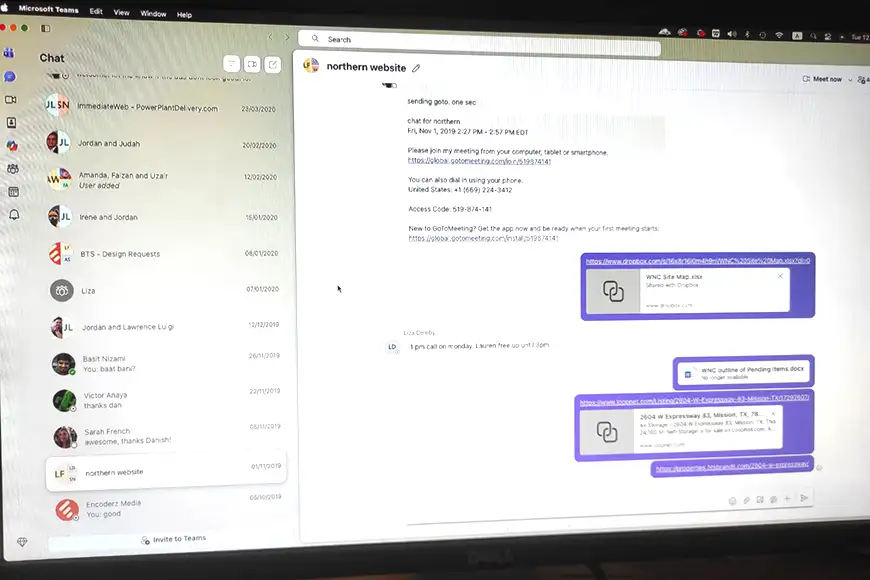
If Microsoft Teams cannot share screen during a meeting, it can interrupt your presentations, online collaboration or remote support sessions. In some cases, the share button appears greyed out, or the participants see a black screen, receive permission-related errors etc. This happens both on Windows and MacOS and requires a few minutes of quick fixes before you can continue with the meeting.
Common reasons why Teams screen sharing fails
Screen sharing problems in Microsoft Teams are often caused by permission issues, outdated app, graphics drivers, or browser conflicts if you are using a browser and not the app, or unstable internet connections. On Mac devices, privacy settings blocking the screen recording permissions is more common, while Windows users may experience issues related to graphics drivers or corrupted Teams cache files. We will start with the basics and move on to more complex fixes below:
Step 1: Restart Microsoft Teams and your computer
Get rid of temporary glitches which can prevent Teams from accessing screen sharing features properly.
Completely close Microsoft Teams instead of simply minimizing it. On Windows, right-click the Teams icon in the taskbar and select Quit. On Mac, use Command + Q to fully exit the application. Restart your computer afterward and try screen sharing again.
This simple step often fixes temporary software conflicts that cause Microsoft Teams cannot share screen errors.
Step 2: Check screen sharing permissions on Mac
Mac users frequently experience screen sharing issues because macOS blocks screen recording permissions by default.
Go to:
System Settings > Privacy & Security > Screen Recording
Make sure Microsoft Teams is enabled in the list. If Teams is already checked, disable it temporarily, restart the Mac, and enable it again. After granting permission, restart Microsoft Teams completely before testing screen sharing again.
Step 3: Update Microsoft Teams
Using an outdated Teams version can create compatibility problems with screen sharing features.
In Microsoft Teams, click your profile picture and select Check for updates. Teams will automatically download and install available updates in the background. Updating Teams is especially important after Windows or macOS system updates because older versions may not work correctly with newer operating system security settings.
Step4: Clear the Microsoft Teams cache
Corrupted cache files can interfere with meetings, screen sharing, and application performance.
For Windows users:
- Close Teams completely
- Press Windows + R
- Type: %appdata%\Microsoft\Teams
- Delete the cache folders
For Mac users:
Open Finder and navigate to:
~/Library/Application Support/Microsoft/Teams
Delete the cache files and restart Teams.
If Microsoft Teams cannot share screen, this step will work for many users immediately after clearing corrupted cache data.
Step 5: Check meeting policies and permissions
In work or school environments, IT administrators can disable screen sharing through Microsoft 365 policies.
If the Share button is missing or disabled, contact your organization’s IT administrator to verify that screen sharing permissions are enabled for your account.
Some organizations only allow presenters or meeting organizers to share screens, which can also create confusion during meetings. In that case, your meeting host will allow you to share your screen.
Step7: Test a different browser or desktop app
If you are using Teams in a web browser, browser permissions may block screen sharing.
Try switching to another browser such as:
- Google Chrome
- Microsoft Edge
- Mozilla Firefox
Also ensure the browser has permission to record the screen under system privacy settings.
If the issue continues in the browser version, install and try the desktop application instead.
Step8: Update graphics drivers on Windows
Outdated or corrupted graphics drivers can prevent proper screen rendering during sharing sessions.
Open Device Manager and update your display adapter drivers. You can also download the latest drivers directly from your laptop or GPU manufacturer.
After updating the drivers, restart the computer and test Microsoft Teams screen sharing again.
Step9: Check your internet connection
Poor internet connectivity can interrupt screen sharing or cause freezing and black screens.
If possible:
- Use a wired Ethernet connection
- Disconnect unused devices from the network
- Close bandwidth-heavy applications
- Restart your router
A stable internet connection is essential for smooth screen sharing performance in Teams meetings.
Final thoughts
When Microsoft Teams cannot share screen, the issue is usually related to permissions, outdated software, cache corruption, or graphics conflicts. Mac users should first verify screen recording permissions because Mac is more strict on this matter, while Windows users should look for cache files or update graphics drivers.
By following the troubleshooting steps above, most Teams screen sharing problems can be resolved without reinstalling the application or contacting support.