Answers to all your Questions.
Browse through numerous categories to find what you are looking for, this place has it all
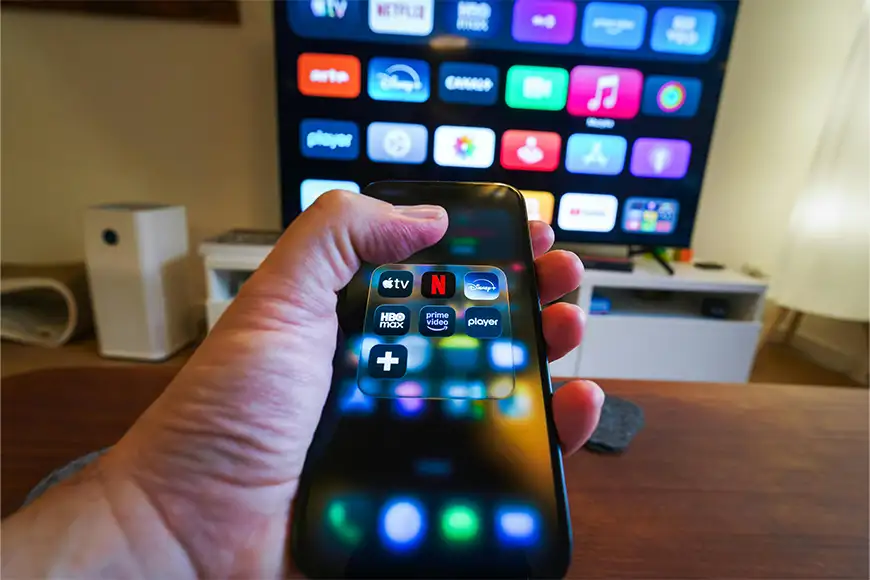
Samsung smart TV Netflix app not working – Troubleshooting guide
Published on May 18, 2026 by Fixidia Tech
Samsung Smart TV Netflix app not working? Try these quick fixes:
1: Restart your Samsung Smart TV
The easiest and quickest way to fix the issue, turn your TV off, unplug the power cable and wait for at least 60 seconds and then start your TV again.
2: Check your internet connection
Make sure your TV is connected to Internet, check the WiFi settings of your internet, sometimes disconnecting WiFi and reconnecting will work.
3: Force close and reopen Netflix
Press and hold the Back button on the Samsung remote until Netflix closes completely. Reopen the app afterward and test streaming again.
You have a Samsung Smart TV Netflix app not working issue, to be honest, Samsung is not alone, my Sony Bravia has the same issue sometimes and I have to fix it using different methods. In this article we will focus on Samsung generally but a few of these fixes can be applied on other TV brands as well. Many Samsung TV users experience problems where Netflix refuses to open, crashes on startup, freezes during streaming, shows a black screen, or keeps buffering endlessly. In most cases, the problem is caused by internet connectivity issues, outdated software, corrupted app data, or temporary glitches inside the TV system.
Common reasons why Netflix stops working on Samsung TVs
Netflix depends on a stable internet connection, updated TV firmware, and properly functioning app data. Problems can occur after software updates or requiring software updates, network interruptions, server outages, or memory-related glitches inside the TV operating system.
A Samsung Smart TV Netflix app not working problem may also happen if the app cache becomes corrupted or if the TV model is too old to support the latest Netflix updates.
Step 1: Restart your Samsung Smart TV
The first and the easiest fix is restarting the TV completely.
Turn off the TV using the remote, then unplug it from the wall outlet for about 60 seconds. Press and hold the TV power button for 10–15 seconds while unplugged to drain residual power. Reconnect the TV and launch Netflix again.
This full power cycle often clears temporary software glitches affecting streaming apps.
Step 2: Check your internet connection
Netflix requires a stable internet connection for proper streaming. Open another app such as YouTube or Disney+ and test whether videos load normally.
If other apps also struggle, we’ve probably found the problem, just restart your router and modem. Weak WiFi signals, especially on older TVs, can cause Netflix to freeze or fail to connect. to fix the WiFi related issue, have a look at this article here, we’ve covered everything related to internet connectivity in this article.
Step 3: Force close and reopen Netflix
Sometimes the Netflix app becomes stuck in memory.
Press and hold the Back button on the Samsung remote until Netflix closes completely. Reopen the app afterward and test streaming again.
This can resolve freezing or loading loop issues quickly.
Step 4: Update the Netflix app
An outdated Netflix version may stop working properly after server-side updates.
Go to: Apps > Settings > Updates and check whether a newer version of Netflix is available. Installing the latest update can fix compatibility and performance issues.
Step 5: Update Samsung TV firmware
Outdated TV firmware can cause app instability and streaming problems. In some cases outdated TV firmware can cause problems greater than just the Apps, it may not even turn on occasionally or freeze on multiple apps and not just Netflix.
To update the TV software:
- Open Settings
- Go to Support
- Select Software Update
- Choose Update Now
Firmware updates often include bug fixes, app compatibility improvements, and network stability enhancements.
Step 6: Reinstall the Netflix app
Corrupted app files may prevent Netflix from functioning correctly.
On Samsung Smart TVs:
- Open Apps
- Highlight Netflix
- Select Delete or Reinstall
- Download the app again from the app store
Reinstalling the app will refresh all Netflix system files, it often resolves persistent issues.
Step 7: Sign out and sign in again into Netflix
Account-related glitches can sometimes interrupt playback or loading.
Inside Netflix:
- Open the left-side menu
- Go to Get Help
- Select Sign Out
Restart the TV and log back into your Netflix account. This will refresh the account authentication and session data.
Step 8: Clear Samsung Smart Hub cache
Samsung TVs can slow down when app cache or temporary memory becomes overloaded. You can reset Smart Hub by going to:
Settings > Support > Device Care > Manage Storage
Clear unnecessary app cache or unused applications to free up system resources. This fix is especially useful on older Samsung Smart TVs with limited internal storage.
Step 9: Check if Netflix servers are down
Sometimes the problem is not your TV at all.
Netflix servers occasionally experience outages that affect certain regions or devices. Try to open Your Netflix app on your mobile and see if it has the same issue, in that case waiting for Netflix to restore service may be the only solution.
A Samsung Smart TV Netflix app not working issue caused by server downtime usually resolves automatically once Netflix fixes the outage.
Step 10: Reset the Samsung Smart TV
If none of the previous fixes work, resetting the TV may help. But you have to be careful while doing this, all other settings including other apps will be affected by this action, do this only when you are sure what will happen to other functions of the TV.
Go to:
Settings > General > Reset
This restores factory settings and removes corrupted configurations affecting apps. After the reset, reinstall Netflix and sign in again.
FAQs
Why is the Netflix app not working on my Samsung smart TV?
The Netflix app may stop working because of internet issues, outdated firmware, corrupted app data, or temporary software glitches inside the TV system. Restart the TV, update TV software, reinstall the Netflix app or clear Smart Hub cache of your Samsung TV
Why is Netflix no longer available on my Samsung Smart TV?
Some older Samsung Smart TV models no longer support newer Netflix app versions as of September 2024. In these cases, using a streaming device such as a Roku, Fire TV Stick, or Chromecast may be necessary.
Is Netflix down on Samsung Smart TVs?
Occasionally, Netflix servers experience outages that affect Samsung TVs and other devices. If the app suddenly stops working for many users at the same time, the issue may be server-related and you can wait for it to come back online.
How to force reset Netflix on Samsung TV?
You can force reset Netflix by holding the buttons on your TV remote in this sequence: Up, Up, Down, Down, Left, Right, Left, Right, Up, Up, Up, Up. and then Sign Out or Reset from the Menu.