Answers to all your Questions.
Browse through numerous categories to find what you are looking for, this place has it all
WiFi signal weak on laptop – Troubleshooting Guide
Published on June 6, 2026 by Fixidia Tech
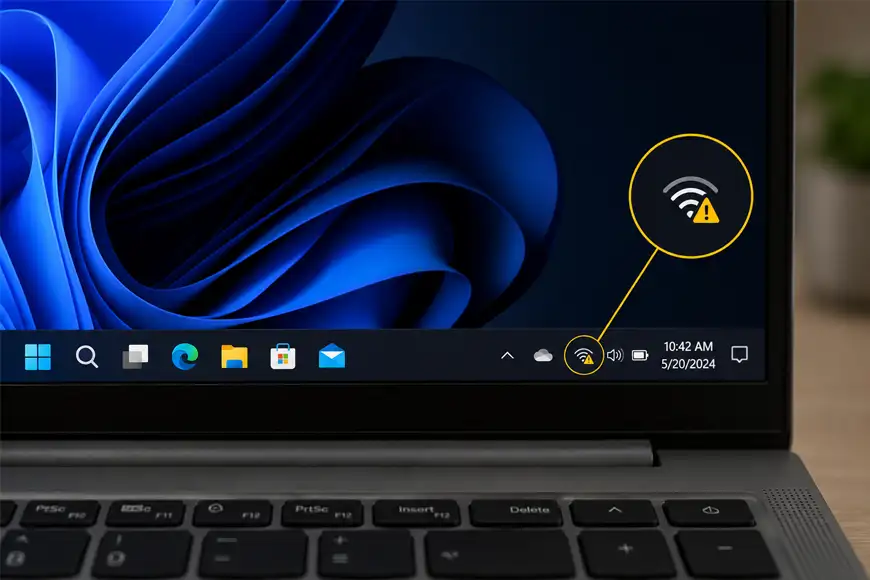
If your WiFi signal weak on laptop issue is causing slow internet speeds, frequent disconnects, or poor video call quality, you can try these quick fixes first, then we can look into it in depth in this article.
1.Move closer to the router
2.Restart the router and laptop
3. Switch between 2.4GHz and 5GHz bands
Weak WiFi signals are one of the most common networking problems laptop users face. The issue can occur because of router placement, wireless interference, outdated drivers, hardware settings, or physical obstacles blocking the signal.
There are several effective ways to strengthen your connection and improve wireless performance without replacing your laptop but let’s first see the common reasons why it happens.
What causes weak WiFi signals on laptops?
A weak wireless signal can result from distance between the laptop and router, interference from nearby electronics, outdated network drivers, or crowded wireless channels. In some cases, the router is functioning properly, but the laptop’s wireless adapter settings reduce signal quality. Sometimes the WiFi signal is weak only at night, read this article to fix that issue
The problem can also occur after Windows updates or changes to network settings.
Step 1: Move closer to the router
The simplest way to improve signal strength is reducing the distance between your laptop and the router.
Walls, ceilings, metal objects, and large furniture can weaken wireless signals significantly. Move closer to the router and check whether signal strength improves. If performance improves by getting closer, signal coverage is likely the main issue.
Step 2: Restart the router and laptop
Temporary networking glitches can affect wireless performance.
First, turn off your router for about 30 seconds, then restart it. Let the internet connection stabilize first, then restart the laptop afterward and reconnect to WiFi.
This refreshes network connections and often resolves minor communication issues.
Step 3: Switch between 2.4GHz and 5GHz bands
Modern routers typically support both 2.4GHz and 5GHz wireless networks.
- 4GHz offers longer range and better wall penetration.
- 5GHz provides faster speeds but shorter range.
If the signal is weak, try connecting to the 2.4GHz network instead of 5GHz. This clearly means that 5G is not always good for better connectivity, 2.4G is probably a better choice if you are sitting farther from the router. Many users notice immediate improvements after switching bands.
Step 4: Update WiFi adapter drivers
Outdated network drivers can reduce wireless performance and stability.
To update drivers, press Windows + X
- Open Device Manager
- Expand Network Adapters
- Right-click your WiFi adapter
- Select Update Driver
Or download the latest drivers directly from the laptop manufacturer’s support website.
Step 5: Disable power-saving mode for the WiFi adapter
Windows may reduce power to the wireless adapter for battery saving. To disable this setting, do the following:
- Open Device Manager
- Right-click the WiFi adapter
- Select Properties
- Open the Power Management tab
- Uncheck “Allow the computer to turn off this device to save power”
This can improve signal consistency and prevent unexpected disconnects. If you are looking to fix the issue on a specific laptop like Dell, read here
Step 6: Change the router’s wireless channel
Wireless interference from neighboring networks can weaken signal quality.
Most routers allow you to manually select a wireless channel. Switching to a less crowded channel can improve performance, especially in apartment buildings or densely populated areas. Many modern routers also include an automatic channel selection feature.
Step 7: Reduce wireless interference
Several household devices can interfere with WiFi signals, including:
- Microwave ovens
- Bluetooth devices
- Cordless phones
- Baby monitors
- Smart home equipment
Move the router away from these devices if possible. Place your router at a higher place or mount high on the wall to avoid interference and better single distribution. This can significantly improve signal strength and reliability.
Step 8: Check Windows network settings
Windows troubleshooting tools can sometimes identify connection problems automatically. Go to: Settings > Network & Internet > Advanced Network Settings > Network Troubleshooter
Allow Windows to scan for adapter configuration issues and apply recommended fixes.
Step 9: Use a WiFi extender or mesh system
If the router is far away from your workspace, a WiFi extender or mesh WiFi system should help you. These devices improve wireless coverage and eliminate dead zones throughout the home or office. They are useful in larger houses specially with multiple floors.
Step 10: Consider using Ethernet
For maximum stability and speed, connect the laptop directly to the router using an Ethernet cable.
A wired connection eliminates wireless interference entirely and provides the most reliable network performance for:
- Video conferencing
- Online gaming
- Large downloads
- Remote work
FAQs
Why is my laptop Wi-Fi signal so weak?
Weak WiFi signals are commonly caused by distance from the router, physical obstructions, wireless interference, outdated drivers, or poor router placement.
How do I make my Wi-Fi signal stronger on my laptop?
Move closer to the router, update WiFi drivers, switch to the appropriate frequency band, reduce interference, and disable power-saving settings for the wireless adapter.
Is 2.4 or 5.0 GHz faster?
5GHz is generally faster and supports higher data transfer speeds. However, 2.4GHz offers better range and performs better through walls and obstacles.
How do I fix my Wi-Fi signal might be too weak?
Restart the router, move closer to the access point, update network drivers, switch wireless bands, reduce interference, or use a WiFi extender to improve coverage and signal strength.