Answers to all your Questions.
Browse through numerous categories to find what you are looking for, this place has it all
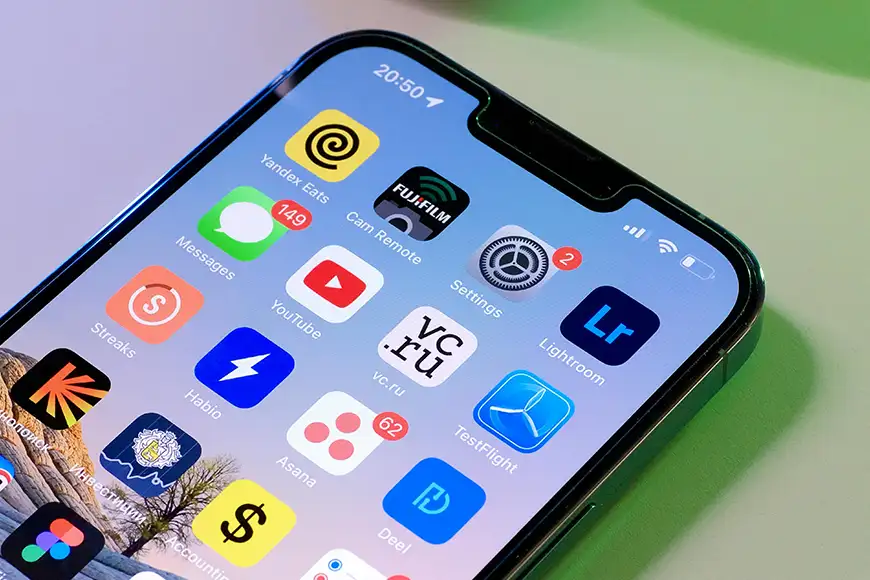
iPhone not connecting to WiFi – Quick Fix
Published on May 26, 2026 by Fixidia Tech
Your iPhone not connecting to WiFi, the problem suddenly appeared, no browsing or any other internet activity possible, here are the quickest first picks you can try:
1: Restart your iPhone and router
2: Toggle WiFi off and back on
3: Forget the WiFi network and reconnect
Some users see the WiFi network but cannot connect, and some experience constant disconnects, slow internet speeds, or even a greyed-out WiFi option. These issues can happen because of router problems, incorrect network settings, software related issue, for example outdated iOS version. Most WiFi related problems on iPhone can be fixed quickly without professional repair, but first you need to isolate why its happening:
Common reasons why iPhone WiFi stops working
WiFi connection issues on iPhones are often caused by temporary software bugs, weak signals, or network conflicts, or even simplest of the reasons, incorrect password. Sometimes the problem comes from iOS settings or corrupted saved networks that prevent the connection from working properly.
If iPhone not connecting to WiFi issue appeared after an iOS update, or after switching routers or internet providers, you can track back and implement a fix accordingly.
Step 1: Restart your iPhone and router
The first and simplest fix is restarting both devices completely.
Turn off the iPhone and unplug the WiFi router for about 30 seconds. Power the router back on first, wait for the internet connection to stabilize, then restart your iPhone. This will flush the Temporary connection glitches, a clean reboot should solve the problem.
Step 2: Toggle WiFi off and back on
Sometimes the WiFi radio inside the iPhone becomes temporarily unstable.
Go to: Settings > WiFi. Turn WiFi off, wait a few seconds, and turn it back on again. You can also switch to Airplane Mode for 15–20 seconds and then disable it. This will refresh wireless connections on the device.
Step 3: Forget the WiFi network and reconnect
Corrupted saved network data may prevent successful connections.
To remove the saved network:
- Open Settings
- Tap WiFi
- Select the connected network
- Tap Forget This Network
One the network is forgotten, select it again and reconnect by entering the WiFi password again carefully. This fix is useful if your iPhone is not connecting to WiFi after changing router settings or passwords.
Step 4: Check if other devices can connect
Test whether other devices such as laptops, tablets, or smart TVs can connect to the same WiFi network. If all devices are having problems, then obviously the issue is with the router or internet service provider rather than the iPhone. In that case, restart the router or contact the ISP.
Step 5: Move closer to the router
Check if getting closer to the router helps? Weak WiFi signals can cause unstable or failed connections.
Walls, furniture, appliances, and long distances reduce signal strength significantly. Move closer to the router and test the connection, if the signal improves nearby, you may need:
- A WiFi extender
- A mesh WiFi system
- Better router placement
Step 6: Disable VPN services temporarily
Are you using a VPN? These apps mostly interfere with WiFi connectivity. Go to: Settings > VPN and temporarily disable active VPN connections. After disabling the VPN, reconnect to WiFi and test internet access again.
Step 7: Update iOS software
Outdated iOS versions may contain networking bugs or compatibility problems.
Go to: Settings > General > Software Update and install any available updates.
Apple regularly releases patches that improve the overall iOS which could also contain WiFi stability and network related upgrades.
Step 8: Reset network settings
If the issue continues, resetting network settings may help.
Go to: Settings > General > Transfer or Reset iPhone > Reset > Reset Network Settings. This will remove saved WiFi networks, Bluetooth settings, and VPN configurations, your default network settings will be restored.
Many persistent WiFi issues on iPhone are resolved after performing a network reset.
Step 9: Check router compatibility and settings
Older routers or incorrect settings can sometimes create compatibility problems with iPhones and other devices as well, Modern day HP, Dell, Lenovo laptops can all have this issue.
Make sure:
- WPA2 or WPA3 security is enabled
- The router firmware is updated
- MAC filtering is disabled unless configured correctly
- Dual-band routers support both 2.4GHz and 5GHz networks properly
Restart the router after changing any settings.
Step 10: Reset the iPhone if necessary
If none of the previous steps work, a deeper software issue may exist.
Before performing a full reset, back up important data using iCloud, iTunes. A factory reset should only be used as a last resort after trying all other fixes.
FAQs
Why is my iPhone suddenly not connecting to Wi-Fi?
This can happen because of router problems, software glitches, incorrect network settings, outdated iOS versions, or weak WiFi signals.
Why does my iPhone keep disconnecting from my Wi-Fi?
Frequent disconnects are commonly caused by weak signal strength, router interference, VPN conflicts, or outdated firmware on the router or iPhone.
How to reset Wi-Fi on iPhone?
You can reset WiFi settings by going to:
Settings > General > Transfer or Reset iPhone > Reset > Reset Network Settings
How to fix Wi-Fi if not connecting?
Restart the router and iPhone, forget and reconnect to the network, move closer to the router, disable VPNs, update iOS, and reset network settings if necessary.