Answers to all your Questions.
Browse through numerous categories to find what you are looking for, this place has it all
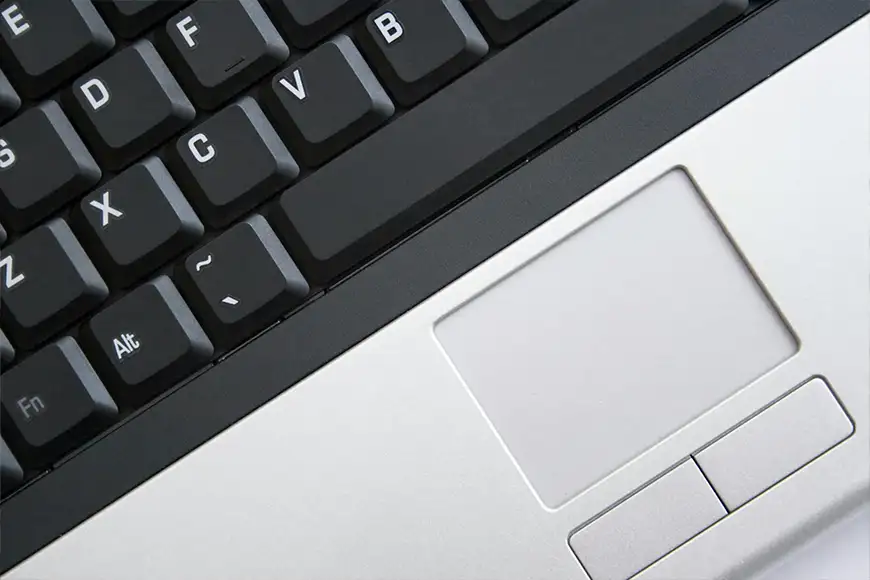
Laptop touchpad not working – Troubleshooting Guide
Published on May 8, 2026 by Fixidia Tech
You have the laptop touchpad not working issue and you don’t really use an external mouse in general, that makes the laptop useless to you almost. There are several possible causes behind the problem. The touchpad may have been disabled accidentally, the driver could be corrupted, or a recent software update may have caused compatibility issues. Lets explore and see what’s wrong here.
Common causes of touchpad problems
In some cases, external devices or hardware faults can interfere with normal touchpad functionality. Laptop touchpad issues can appear suddenly after Windows updates, driver installations, or accidental keyboard shortcuts. Some laptops also disable the touchpad automatically when an external mouse is connected. Understand the possible cause and it will help you identify the right solution faster and restore normal touchpad functionality.
Step 1: Restart your laptop
Temporary system glitches can sometimes stop the touchpad from responding properly. After rebooting, check whether the touchpad starts working again. I had an HP Probook 640 G2, and it had a strange behaviour, the touchpad would work at the login screen, but when I logged in to windows, it would stop working as soon as land on the desktop and the touchpad light would turn on. I tried many things but eventually when I went into touchpad settings, saw that it was already enabled, I disabled it and enabled it again and it worked. It kept working after next restart as well.
Step 2: Check the touchpad keyboard shortcut
Many laptops include a function key shortcut that enables or disables the touchpad. Common examples include: Fn + F5, Fn + F7 or Fn + F9
The exact key depends on your laptop brand. Look for a touchpad icon on the function keys and press the appropriate combination to reactivate the touchpad. Also try doing it a couple of times to disable and enable it again just in case.
This is one of the most common reasons behind laptop touchpad not working problems.
Step 3: Disconnect external mouse devices
If in case you connected an external mouse, Some laptops automatically disable the touchpad when a USB or wireless mouse is connected.
Try the following:
- Disconnect the USB external mouse
- Unplug if you have a wireless receiversfor a wireless mouse.
- Restart the laptop
Once disconnected, test the touchpad again.
Step 4: Enable the touchpad in windows settings
The touchpad may be disabled within Windows settings.
To check touchpad settings:
- Open Settings
- Go to Bluetooth & devices
- Select Touchpad
- Make sure the touchpad is turned on
If the setting is disabled, enable it and test functionality again. If it is enabled, disabled it, Yes! and then enable it again, that solved my problem as I mentioned above.
Step 5: Update touchpad drivers
This is when the basic options have not worked, we will move on to the drivers check. Outdated or corrupted drivers can prevent the touchpad from working correctly.
To update the driver:
- Right-click the Start menu
- Open Device Manager
- Expand Mice and other pointing devices
- Right-click your touchpad driver
- Select Update driver
You can also download drivers directly from your laptop manufacturer’s website.
Step 6: Reinstall the touchpad driver
If updating does not help, reinstalling the driver may fix software corruption.
To reinstall:
- Open Device Manager
- Right-click the touchpad device
- Select Uninstall device
- Restart your laptop
Windows will usually reinstall the correct driver automatically after rebooting.
Step 7: Check BIOS or UEFI settings
Some laptops allow the touchpad to be disabled directly from BIOS or UEFI settings.
To check:
- Restart the laptop
- Enter BIOS or UEFI using keys like F2, Delete, or Esc
- Locate touchpad settings
- Make sure the touchpad is enabled
Save changes and restart the system.
Step 8: Install windows updates
See if your Windows is up-to-date? Because system updates can include important fixes for hardware compatibility issues.
- Open Settings
- Go to Windows Update
- Install all available updates
- Restart your laptop
This can sometimes resolve the touchpad and also other hardware related issues caused by software conflicts.
Step 9: Test in safe mode
Safe Mode loads Windows with minimal drivers and services.
To enter Safe Mode:
- Hold Shift while clicking Restart
- Navigate to Troubleshoot
- Select Advanced options
- Open Startup Settings
- Choose Safe Mode
If the touchpad works in Safe Mode, another program or driver may be interfering with normal functionality. That does narrow down your issue but then it starts a long testing phase as to what program or diver. Usually by #8 you should’ve fixed the touchpad but if this is your case, I would start by updating the chipset driver and see if it works, look for other hardware that was recently updated and see if I can rollback the drivers. It’s going to be a pain I tell you.
Step 10: Check for physical damage
If none of the software solutions work, inspect the touchpad for physical issues.
Look for:
- Swelling near the touchpad
- Liquid damage
- Loose touchpad buttons
- Unresponsive touchpad surface
Go to the best guy in town for professional repair or replacement.
Final thoughts
Laptop touchpad not working problems are often caused by disabled settings, driver issues, software conflicts, or accidental keyboard shortcuts. In many cases, enable/ re-enable, reinstalling drivers, or disconnecting external devices can restore normal functionality quickly.